Converting an Image into a Pencil Sketch in Photoshop
here in this tutorial you will be creating a pencil sketch effect in a 1-2-3 method.
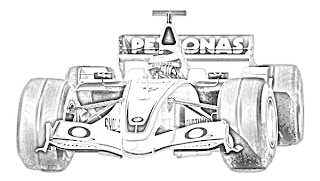


Thats it

- Create a new document with Width 600, Height 340 and white color.
- Open an image in Photoshop.

- Click and drag this onto your document

- Go to: Image > Adjustments > Desaturate

- Duplicate the image layer.
You will now be working on the duplicate layer.
- Go to: Image > Adjustments > Invert

- Change its Blend Mode from Normal to Color Dodge.

- Go to: Filter > Blur > Gaussian Blur.
Make the following changes:

- Set the Foreground and Background colors as 25% gray and white respectively.
- Select the Brush Tool and open Basic Brushes.
- Select Soft Mechanical Brush.

- Apply the brush on your image, however you like.
you will get the final picture like below
Thats it



Comments
Post a Comment