Posts

Showing posts from June, 2012

Free HQ Icons for Websites part1
Image
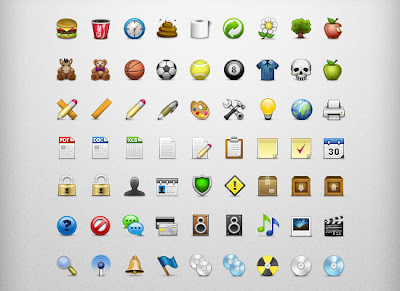
For a web designer, icons are one of the necessities of life. To create websites that are not boring, a web designer should have a collection of icons in significant amounts. Or those of you who like to decorate your website or blog with interesting icons so you can download the following HQ icons row for free.  The above is a high quality web icons set by Omercetin. Download here. Lovely Website Pack. Download here.  Social Me. Download here.  A lot of icons. Download here.  Web Icon Button Set. Download here. Oled Social Icons. Download here.  Social Networks Pro Icons. Download here.
Texture--Rough Paper

Image
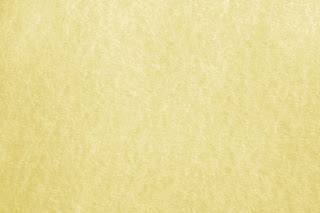
There are so many beautiful digital arts made using rough paper textures. If you are someone that looks for rough paper texture then may these three will give you the solution for your design ideas. Golden parchment paper texture Rough paper Rough paper

Change Hair Color Photoshop Tutorial

Image
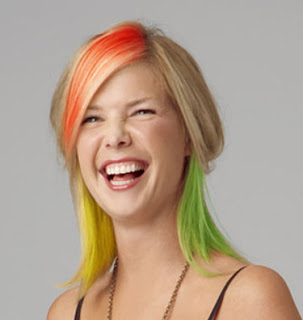
This tutorial teaches how to change hair color using Photoshop (all versions, 7, CS, CS2, CS3, CS4, CS5). Step by step will be explained so you can follow till get the result. There are many reasons why we need to change the hair color. This is very interesting to change hair color of our photos. You don’t need to go to hair saloon to change the hair color instead. Just use Adobe Photoshop and you will get spectacular result. Sometime you need cooler photos to upload them in facebook profile so you can use this changing hair color photoshop tutorial. Step 1: Prepare a photo that you will change the hair color, or use the same photo as we used download here . Step 2: Use Polygonal Lasso Tool(L) to make a selection which hair you want to change the color. Step 3: Use Ctrl+C to copy the hair, Ctrl+Shift+N to create new layer (named new hair), Ctrl+V to paste the hair in new layer on the same place. Step 4: Use Image>Adjustments>Variations to the new hair layer. Select th...

Converting an Image into a Pencil Sketch in Photoshop

Image
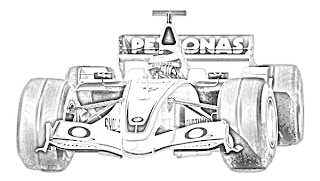
here in this tutorial you will be creating a pencil sketch effect in a 1-2-3 method. Create a new document with Width 600, Height 340 and white color. Open an image in Photoshop. Click and drag this onto your document  Go to: Image > Adjustments > Desaturate Duplicate the image layer. You will now be working on the duplicate layer. Go to: Image > Adjustments > Invert Change its  Blend Mode   from  Normal  to  Color Dodge . Go to: Filter > Blur > Gaussian Blur. Make the following changes:   Set the Foreground and Background colors as 25% gray and white respectively. Select the Brush Tool and open Basic Brushes. Select Soft Mechanical Brush. Apply the brush on your image, however you like. you will get the final picture like below Thats it